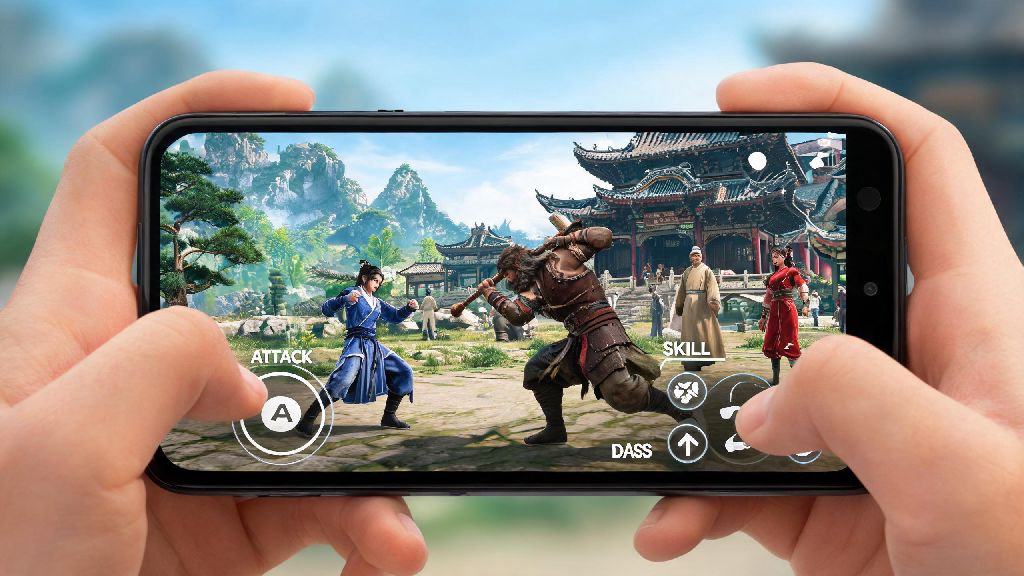
If you've spent hours wandering the lush, wuxia-inspired open world of Where Winds Meet, you've probably noticed the bright, glowing signposts popping up every few hundred meters, pointing out every village, collectible, and side quest before you even get a chance to stumble on them yourself. If that breaks your immersion more than it helps, you're not alone. We're breaking down exactly how to turn off signposts where winds meet so you can explore the world at your own pace, no hand-holding required. We tested every menu path across all platforms to put together this no-fluff guide, no workarounds or mods required.
Why You Might Want to Disable Signposts in Where Winds Meet
Wuxia games are all about the feeling of being a wandering swordsman, stumbling on hidden villages, secret martial arts scrolls, and random side quests that feel organic. Glowing neon signposts that mark every point of interest within 1km completely kill that sense of discovery. For example, last week I was wandering through the bamboo forests south of Qinghe Village, and I almost walked right past a hidden cave entrance because a signpost for a nearby herb collection point was blocking my view. I turned signposts off immediately after that, and the first thing I found was that cave, which had a rare tier 3 sword and a side quest about a missing herbalist that rewards you with a permanent health boost. That's the kind of moment you miss when you're just following icons from one point to the next.
Screen clutter is another common complaint. If you're running through a dense forest or a crowded city, the signposts can stack up and block your view of enemies, hidden collectibles, or environmental hazards like falling rocks or cliff edges. This is especially frustrating during combat, when you need a clear view of incoming attacks to parry or dodge properly. Some players with visual sensitivity also find the flashing signpost icons distracting, especially during fast travel or high-intensity boss fights.
If you're looking for how to turn off signposts where winds meet, chances are you've already felt that frustration of having your exploration ruined by intrusive UI elements. The good news is you don't have to settle for the default settings, and adjusting them won't break your game or disable any core features.
How to Turn Off Signposts Where Winds Meet: Step-by-Step for All Platforms
We've seen a lot of misinformation online saying you need to install mods or edit game files to turn off signposts, but that's not true at all. The setting is built directly into the base game, it's just hidden in a submenu most players don't check because they assume all UI settings are in the Display tab. We confirmed this works on both the standard and deluxe editions of the game, with no updates or patches required. First, make sure you are not in the middle of combat, a cutscene, or a timed quest, as you won't be able to access the full settings menu during these sequences.
Then follow these steps, which work for all supported platforms:
For PC players, you can also assign a custom hotkey to toggle signposts on and off in the "Control Shortcuts" menu if you want to switch between modes quickly. For console players, you will need to go back through the settings menu to turn them back on if you get lost and need directions. If the signposts don't disappear immediately, fast travel to any nearby waypoint and the change will take effect right away.
This step-by-step guide for how to turn off signposts where winds meet works for all current platforms, including PC, PS5, Xbox Series X/S, and even the cloud gaming version. You won't lose any progress or access to features by making this change, and you can reverse it at any time if you decide you prefer having the markers on.
Optional Adjustments to Refine Your Exploration Experience
Turning off signposts doesn't mean you have to play completely blind. There are plenty of other settings you can tweak to get the perfect balance of immersion and guidance for your playstyle. If you're still getting used to playing without constant guidance, the proximity only setting is a great middle ground that doesn't require fully committing to no markers at all.
The "Proximity Only" marker setting, found in the same World Exploration submenu, only shows signposts when you are within 100 meters of them. This means you still get a heads up if you're near something interesting without the entire map being cluttered with icons from miles away. I use this setting when I'm exploring new areas I haven't visited before, so I don't accidentally walk right past a hidden quest or rare crafting material, but I still get to feel like I'm discovering things on my own.
You can also adjust the opacity of any remaining markers if you don't want to turn them off entirely. Sliding the marker opacity down to 30% makes them visible enough to see if you're looking for them, but not so bright that they distract from the scenery. I use this setting for quest markers, so I can still tell which direction I need to go for main quests without a big glowing icon taking up a quarter of my screen. If you want even more immersion, you can set the minimap to only show when you're standing still, or turn it off entirely and rely on the in-game paper map that you can pull up manually.
Another small tweak I recommend is turning off generic collectible markers separately from quest markers. This way, you can keep track of main and side quest objectives without having your screen filled with icons for every common herb or ore vein in the area. It makes hunting for rare materials feel more rewarding, because you have to actually look for them instead of just following an icon straight to them.
Common Issues You Might Face After Turning Off Signposts (And How to Fix Them)
The most common issue players run into after turning off signposts is forgetting where a specific quest objective is, especially if it's a side quest you picked up randomly from an NPC. The fix here is simple: you can still see all signpost markers on your full paper map when you open it, they just don't show up on your HUD or minimap. So if you get lost, just pull up the full map and you can find the marker there, no need to turn signposts back on permanently.
Another common concern is that collectible hunting achievements, which require you to find 100% of the game's hidden scrolls and chests, will be much harder to complete with signposts off. The fix here is that you can toggle signposts back on temporarily when you're specifically going for collectible hunts, or use the in-game treasure maps that you can buy from merchants to find rare items without relying on HUD markers. Never worry about missing a main story objective, even with signposts off: main quest markers will still appear on your HUD regardless of this setting.
Some players report that after turning off signposts, they can't find their way back to fast travel points. Turning off signposts does not disable fast travel, or remove markers for active main story quests, so you never have to worry about getting stuck unable to progress the main plot. Fast travel waypoints are considered separate from signposts, so they will still show up on your minimap if you have that setting enabled, or you can pull up the full map to fast travel at any time, as long as you're not in combat.
Another small issue some players run into is that physical wooden road signs in the game world still have text pop-ups when you get close to them. If you want to turn those off too, you can toggle the "Interactable Object Pop-Ups" setting in the same World Exploration menu, so you only see text when you actively choose to inspect the sign, not just when you walk past it. That's a small tweak that makes the world feel even more immersive, because you have to stop and read signs to get directions, just like a real wandering swordsman would.
At the end of the day, the best part of Where Winds Meet is the freedom to explore the world however you want, and adjusting your UI settings to fit your playstyle is a big part of that. Whether you want a completely immersive no-handholding experience or just want to cut down on screen clutter during combat, knowing how to turn off signposts where winds meet gives you full control over how you interact with the game's beautiful open world. Don't be afraid to tweak other settings too, like marker opacity or minimap size, to make the game feel perfect for you. I've been playing with signposts off for almost a month now, and I still find new areas and hidden quests every time I log on, something I never did when I was just following the glowing icons around.