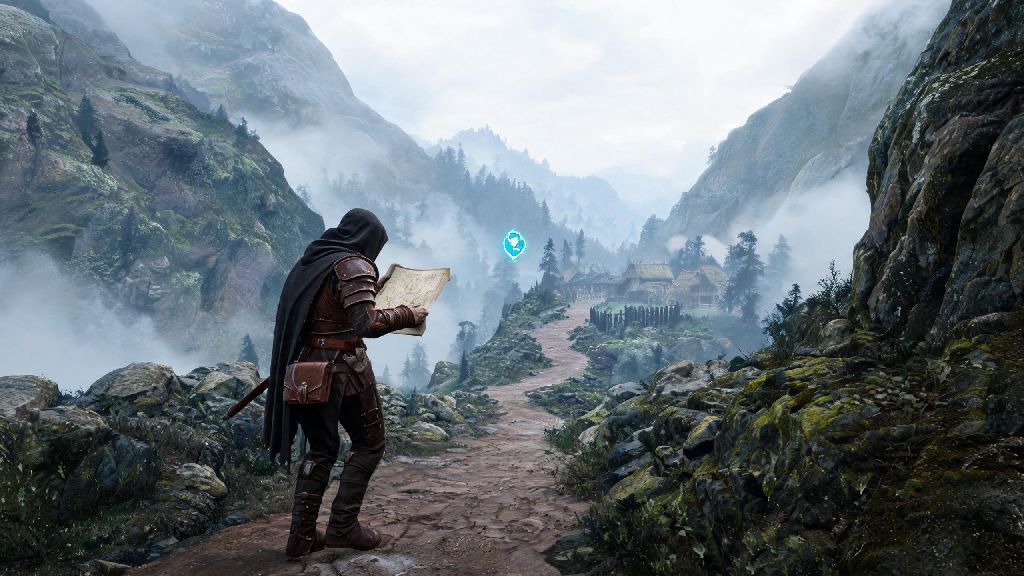
Whatever you do, never use unvetted sideloading tools to install the game. These third-party app stores often inject malware into game files, and the developer has explicitly stated that any accounts detected playing on sideloaded versions will be permanently banned. The account ban risk is not worth the small convenience of skipping the official access methods, especially since all the options listed above take less than 10 minutes to set up.
One thing to note: if you use the region switch method, you won’t be able to make in-app purchases until you switch your App Store region back to a supported location, or add a payment method tied to the region you switched to. That’s not a big issue if you don’t plan on spending money in the game, but it’s something to keep in mind if you want to buy premium skins or battle passes later.
Tips to Optimize Where Winds Meet iOS Performance on Your Device
Even if you have a newer device, you might run into occasional frame drops or overheating if you don’t adjust your settings properly. The iOS port is well optimized for most supported Apple devices, but there are a few small tweaks you can make to get the smoothest possible experience, especially during busy combat sequences or when exploring crowded open-world areas.
First, disable low power mode before launching the game. Low power mode throttles your device’s processor to save battery, which will cut your frame rate in half even on high-end iPhones. It’s also a good idea to close all other background apps before you start playing, especially streaming apps or navigation apps that use a lot of processing power in the background. If you usually have background app refresh enabled for all apps, turn it off for Where Winds Meet specifically to free up more resources for the game itself.
For graphics settings, I recommend starting with the “balanced” preset if you’re on an iPhone 12 or 13, which will give you a steady 30fps with minimal overheating. If you’re on an iPhone 14 Pro or newer, or any recent iPad Pro, you can bump the settings up to “high” and enable 60fps for a much more immersive experience. Just keep in mind that running the game on max settings for more than an hour straight will cause your device to heat up, which will eventually trigger automatic throttling. I use a cheap $15 mobile cooling fan when I play for long sessions, and it completely eliminates throttling issues for me.
You should also make sure you have at least 10GB of free storage on your device before you download the game. The initial download is around 6GB, but you’ll need extra space for future content updates and temporary cache files that the game creates as you play. If you have less than 2GB of free space left, you’ll almost definitely experience random crashes and long load times, even if your device meets all the other requirements.
Common Where Winds Meet iOS Glitches and How to Fix Them
Even with the official version, you might run into a few common glitches that are specific to the iOS port. These are all easy to fix once you know what’s causing them, and you don’t need any technical skills to resolve most of them in a couple of minutes.
The most common issue users report is the game getting stuck on the loading screen when they first launch it. This almost always happens because your internet connection is unstable, or you’re using a VPN that’s interfering with the game’s server connection. Try turning off your VPN first, then switch between Wi-Fi and mobile data to see if that fixes the problem. If it still won’t load, restart your device and try again. If that doesn’t work, you can verify game file integrity through the game’s settings menu on the launch screen, which will scan for corrupted files and replace them automatically.
Another common problem is unresponsive touch controls during combat. This is usually caused by iOS’s built-in touch accommodations features, which can accidentally register multiple inputs or delay taps when you’re pressing the screen quickly. You can fix this by going to your iOS settings, navigating to Accessibility > Touch, and turning off all touch accommodations features while you’re playing. You can also turn off “tap to wake” and other gesture controls that might activate accidentally while you’re holding your phone to play.
If you’re experiencing constant audio crackling or distorted sound, that’s almost always caused by Bluetooth headphones that are connected to your device. The iOS port has a known bug with certain Bluetooth audio codecs, so the easiest fix is to switch to wired headphones, or disconnect and reconnect your Bluetooth headphones before you launch the game. The developer has confirmed that this bug will be patched in the next global content update, so it should be resolved soon.
Whether you’re jumping into wuxia combat for the first time or returning to explore new map regions you missed on PC, Where Winds Meet iOS offers the same immersive experience as the desktop and console versions when set up correctly. Stick to the legitimate access methods we covered, adjust your settings for your specific device, and you’ll be pulling off gravity-defying martial arts moves on your iPhone or iPad in no time. If you run into any snags you can’t fix with the tips we shared, just drop a note in the comments and I’ll help you work through it.